How to Get Faster Speeds From Your WiFi Extender
WiFi extender working but slower than expected? Here's how to actually optimize it for better speed, not just coverage.
Getting a WiFi extender working and getting it working well are two different achievements. A lot of setups technically succeed — the dead zone now shows WiFi bars — but the actual speed in that room is disappointing compared to what the router delivers directly. This isn't usually a hardware problem. It's almost always a configuration or placement detail that's easy to fix once you know what to look for.
Here's how to get genuinely better performance out of an extender that's already working, just not working as well as it should.
The "Strong Signal Trap" — Why More Bars Doesn't Mean More Speed
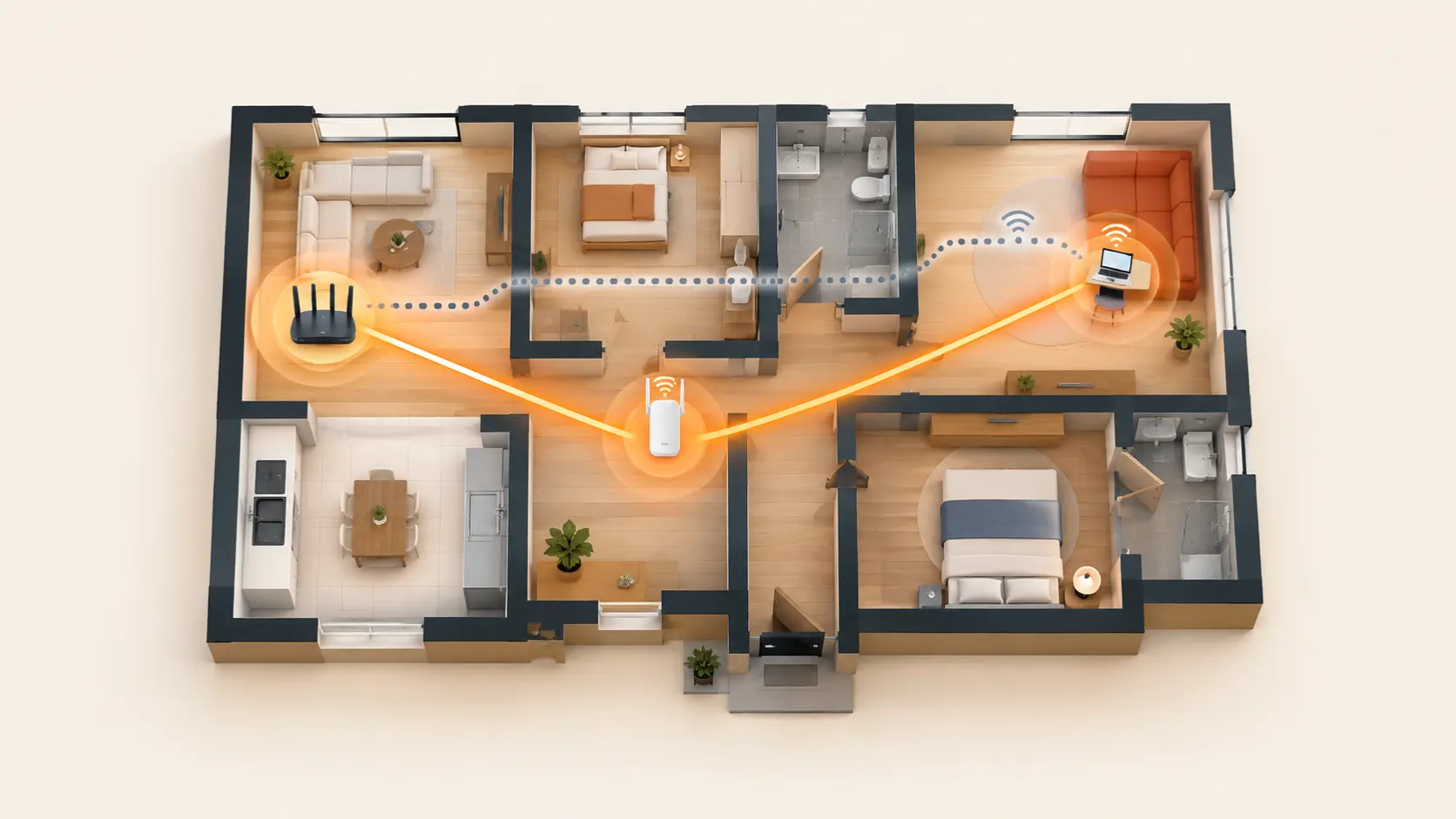
This is the single most common reason people are unhappy with extender performance despite full signal bars on their phone. If you place an extender too far from your router — even if it's still technically within range — your phone will show a strong connection to the extender, while the extender itself is receiving a weak, degraded signal from the router. You end up with a strong-looking connection carrying a slow, bottlenecked stream of data.
The fix: don't judge placement purely by the signal your device shows to the extender. Check the extender's own connection back to the router — most Tenda extenders show this via a status light or in the companion app. If that back-haul connection is weak, moving the extender closer to the router, even if it covers a slightly smaller area, will almost always give you better real-world speed than a farther placement with more bars.
Wire It If You Can: AP Mode Changes Everything
If there's any way to run an Ethernet cable from your router to your extender's location — even for just the initial setup, or permanently if it's practical — doing so eliminates the extender's biggest inherent limitation. A wirelessly-relayed extender has to receive and rebroadcast on the same radio, which roughly halves available speed. An extender connected by Ethernet cable (often called "AP mode" on the device) doesn't have this problem at all, since the router connection comes over the wire, and the extender's radio is used purely for broadcasting to your devices.
This isn't practical for everyone — running new cable is real effort — but if your extender's placement happens to be somewhere a cable run is feasible (along a skirting board, through an existing conduit, between adjoining rooms), it's worth doing. You get access-point-level performance at extender-level cost and simplicity.
Check Your Channel Width and Congestion
In apartment buildings and dense neighbourhoods, dozens of nearby WiFi networks can be competing for the same limited set of channels, particularly on the 2.4GHz band. This congestion slows down both your router and your extender, independent of placement.
What to check: most routers and extenders let you view or adjust the WiFi channel being used, sometimes automatically, sometimes manually. If you have access to a WiFi analyzer app on your phone, it can show you which channels are least congested in your specific location — switching to a quieter channel can produce a noticeable, sometimes surprising improvement, especially in crowded apartment buildings where the default channel is often heavily used by neighbouring networks.
Fewer, Well-Placed Extenders Beat More, Poorly-Placed Ones
It's tempting to think adding a second or third extender will keep improving coverage indefinitely. In practice, each additional wireless hop degrades speed further, and too many extenders on the same network can create their own interference and confusion about which device connects to which extender. Before adding another unit, confirm you actually have a verified dead zone that a better-placed single extender can't already solve — often, repositioning the existing extender fixes the problem without needing a second device at all.
Match Devices to the Right Band, If You're Using a Dual-Band Extender
On a dual-band extender like the Tenda A19, some devices may default to connecting on 2.4GHz even when 5GHz would give them better speed, particularly if they're relatively close to the extender. If a specific device seems slower than expected despite good placement, check whether it's connected on 2.4GHz or 5GHz in its WiFi settings, and manually switch to the 5GHz network name if the device supports it and is within reasonable range.
When Optimisation Isn't Enough: Recognising the Ceiling
If you've checked placement, tried wiring it where possible, addressed channel congestion, and speed in the extended area is still consistently disappointing for what you actually need there — heavy 4K streaming, competitive gaming, large file transfers — this may simply be beyond what a wireless-relay extender can deliver for that specific use case, regardless of optimisation. At that point, a wired access point, which doesn't carry the same inherent speed penalty, becomes the more appropriate upgrade rather than continuing to tune an extender past its practical ceiling. Our access point vs range extender guide walks through that decision in more detail.
Frequently Asked Questions
Why does my extender show full signal bars but still feels slow?
This is the "strong signal trap" — your device's strong connection to the extender doesn't guarantee the extender itself has a strong connection back to the router. Check the extender's own backhaul signal strength, not just what your phone shows.
Does connecting my extender by Ethernet cable actually make a noticeable difference?
Yes, often a significant one. A wired connection (AP mode) removes the roughly 50% throughput penalty inherent to wireless-relay extending, since the extender no longer needs to use the same radio for both receiving and rebroadcasting.
Should I use 2.4GHz or 5GHz for better extender performance?
5GHz generally offers faster speeds at shorter range, while 2.4GHz offers better range at lower speeds. If your device is reasonably close to the extender and supports 5GHz, manually selecting that band often improves speed noticeably.
Is it better to have one strong extender or two weaker ones covering the same area?
Generally, one well-placed extender outperforms two poorly-placed ones. Each additional wireless hop reduces speed further, and unnecessary extenders can create interference. Only add a second unit if you have a genuinely verified dead zone that repositioning the first one can't resolve.
Can old or outdated firmware cause slow extender speeds?
Yes, outdated firmware can affect both performance and stability. Checking for and installing firmware updates periodically through the Tenda WiFi app is a simple step that's easy to overlook.
Will switching WiFi channels really make a noticeable difference?
In congested environments like apartment buildings, yes — switching from a heavily-used channel to a quieter one can produce a meaningful speed improvement, since less interference means more reliable data transmission.
Most extender speed complaints come down to placement, wiring, or channel congestion — all fixable without buying new hardware. Browse Tenda's range extenders if it's time to upgrade to a model better suited to your space.