Network Switch Not Working? Common Problems and How to Fix Them
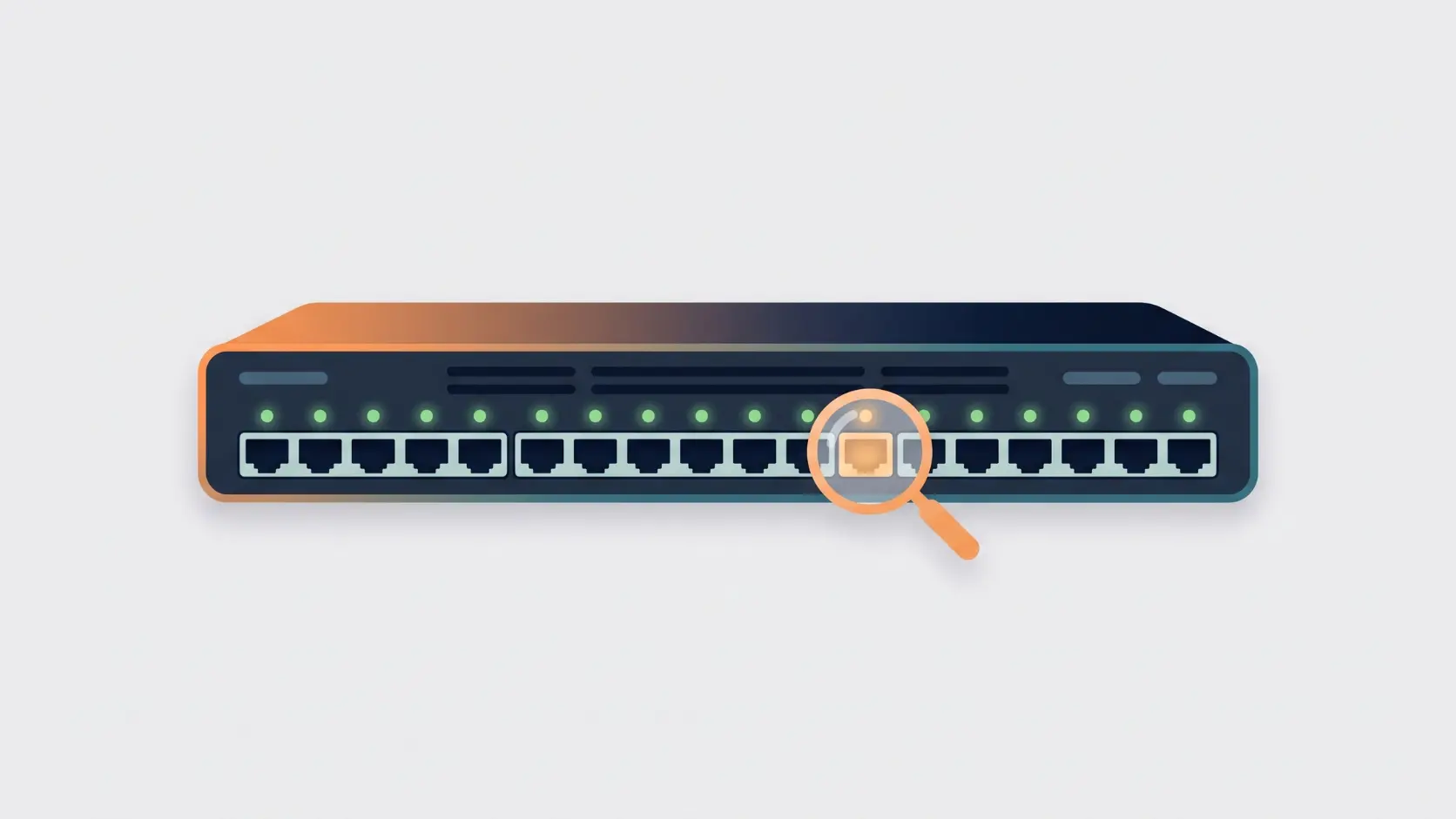
Switch not powering on, no internet, or random disconnects? Here are the most common network switch problems and how to actually fix them.
A network switch is about as close to "it just works" as networking hardware gets — which is exactly why it's unsettling when it doesn't. The good news is that switch problems trace back to a fairly small, predictable set of causes, and most are genuinely quick to diagnose once you know what to check first.
Step 1: Check the Lights Before Anything Else
Every switch's port and power LEDs tell you most of what you need to know before you touch a single cable:
- No lights at all on the switch → Check the power connection and outlet first. If the switch genuinely has no power, nothing downstream will work regardless of cabling.
- Power light on, but a specific port shows no light → That port isn't detecting a connected device. Check the cable and the device on the other end before assuming the port itself is faulty.
- Solid green light → A good, established connection
- Blinking green light → Active data traffic — generally a healthy sign
- Amber or orange light instead of green → Often indicates a speed or duplex mismatch between the switch and the connected device, or a minor network error worth investigating
- Light on but device still shows no network access → The physical connection is fine; the problem is likely further up the chain (your router, or network configuration)
Problem 1: Switch Has No Lights at All
Confirm the power adapter is firmly connected at both ends, and that the outlet itself is working — try a different outlet or a known-working adapter if you have one. If the switch still shows no sign of life with confirmed working power, the switch itself may have failed, particularly if it's been in service for a long time or was recently exposed to a power surge.
Problem 2: Connected, But No Internet Access
This is one of the most common complaints, and it usually isn't the switch's fault at all. Check your network's basic topology first: your switch should connect behind your router, not directly to your modem. If a switch is connected straight to a modem instead of a router, you'll often see exactly one device get internet access while everything else connected to the switch gets nothing — a classic sign of this specific wiring mistake.
If the topology is correct (modem → router → switch → devices) and you're still seeing no internet on connected devices, check whether your router itself has internet access working for directly-connected devices. If the router's own connection is fine, the issue may be with how the specific device is requesting an IP address — restarting the device, or the switch and router together, resolves a meaningful share of these cases.
Problem 3: One Specific Port Doesn't Work, But Others Are Fine
This points to either a damaged port on the switch or a problem specific to that one connection, rather than a switch-wide issue.
Test systematically: move the connected device to a different port on the same switch. If it works there, the original port is likely faulty. Then try a different cable in the original port with a different device — if that also fails, the port itself is the problem; if it works, the original cable was likely damaged.
Problem 4: Switch Was Working Fine, Then Started Having Random Issues
Check for overheating first. A switch that's hot to the touch, reboots randomly, or seems to work fine in the morning and degrade by afternoon is showing classic overheating symptoms. Ensure the switch has adequate ventilation — not enclosed in a sealed cabinet, not stacked tightly against other heat-generating equipment, and not sitting in direct sunlight or a particularly warm location.
Check for too many connected devices drawing unusual load, particularly relevant if you're running a PoE switch where adding devices increases the switch's actual power draw and heat generation. See our PoE power budget guide if this applies to your setup.
A simple power cycle — unplugging the switch for about 30 seconds before reconnecting — resolves a genuinely large share of these intermittent, no-obvious-cause issues.
Problem 5: Slow Speeds or Intermittent Connectivity Across the Whole Network
If the issue affects multiple devices rather than one specific port, check for a speed or duplex mismatch — this shows up as an amber rather than green port light, and typically means the switch and a connected device have negotiated different speeds and aren't communicating optimally. Most modern switches and devices auto-negotiate this correctly, but older equipment or non-standard cabling can occasionally cause a mismatch.
Also worth checking: whether you've accidentally created a network loop by connecting two ports on the same switch together, or connecting two switches to each other in more than one place. This causes a "broadcast storm" — a flood of repeating traffic that can bring an entire network to a crawl. If you've recently changed cabling and performance suddenly dropped network-wide, this is worth checking first.
Problem 6: A Newly Added Device Won't Connect
Try the device on a different, confirmed-working port first to rule out a port-specific issue. If it still won't connect anywhere on the switch, confirm the device itself works correctly when connected directly to your router, bypassing the switch entirely — this isolates whether the problem is the switch or the device itself.
A Quick Diagnostic Checklist
- Check power and port LEDs first
- Confirm correct topology — switch behind the router, not connected directly to the modem
- Test the affected device on a different port
- Test a different, known-working cable
- Check for overheating if problems appeared after extended use
- Power cycle the switch if the cause isn't obvious
- Check for accidental loops if the whole network has slowed down, not just one device
Most problems resolve at steps 1-4. Steps 5-7 cover less common but real causes worth checking once the basics are ruled out.
Frequently Asked Questions
Why does my switch show lights but devices still can't access the internet?
This usually means the physical connection is fine, but the problem lies further up the chain — check that your switch connects to your router (not directly to your modem), and confirm your router itself has working internet access.
Can a bad switch damage the devices connected to it?
This is uncommon with standard networking switches under normal conditions, though a genuinely faulty power supply or electrical fault could theoretically affect connected equipment in rare cases. If you suspect a switch is malfunctioning, disconnecting it promptly is a reasonable precaution.
Why is my switch hot to the touch?
Some warmth during normal operation is expected, especially on busier switches or PoE models actively powering devices. Excessive heat, especially alongside performance problems, usually points to inadequate ventilation — check that the switch isn't enclosed in a sealed space or stacked against other heat-generating equipment.
Should I reset my switch to factory settings if I'm having problems?
For unmanaged switches, there typically isn't a meaningful "factory reset" since there's no configuration to reset — a simple power cycle (unplug, wait 30 seconds, reconnect) achieves a similar effect. For managed switches, a factory reset is a valid troubleshooting step if a configuration issue is suspected, though it will remove any custom VLAN or QoS settings you've configured.
Why did my network slow down right after I added a new cable connection?
This can indicate an accidental network loop, especially if you connected two ports on the same switch, or connected two switches together in more than one place. Check your recent cabling changes for this specific mistake if performance dropped network-wide right after a change.
How do I know if the problem is my switch or my router?
Test a device connected directly to your router, bypassing the switch entirely. If that works correctly, the issue is likely specific to the switch or its connections. If the problem persists even connected directly to the router, the issue lies further upstream, with your router or internet connection itself.
Most switch problems trace back to power, cabling, topology, or heat — genuinely straightforward to check, even without deep networking knowledge. Browse Tenda's network switch range if it's time to replace an ageing or unreliable switch.