Router Out of Ethernet Ports? Here's the Simple Fix
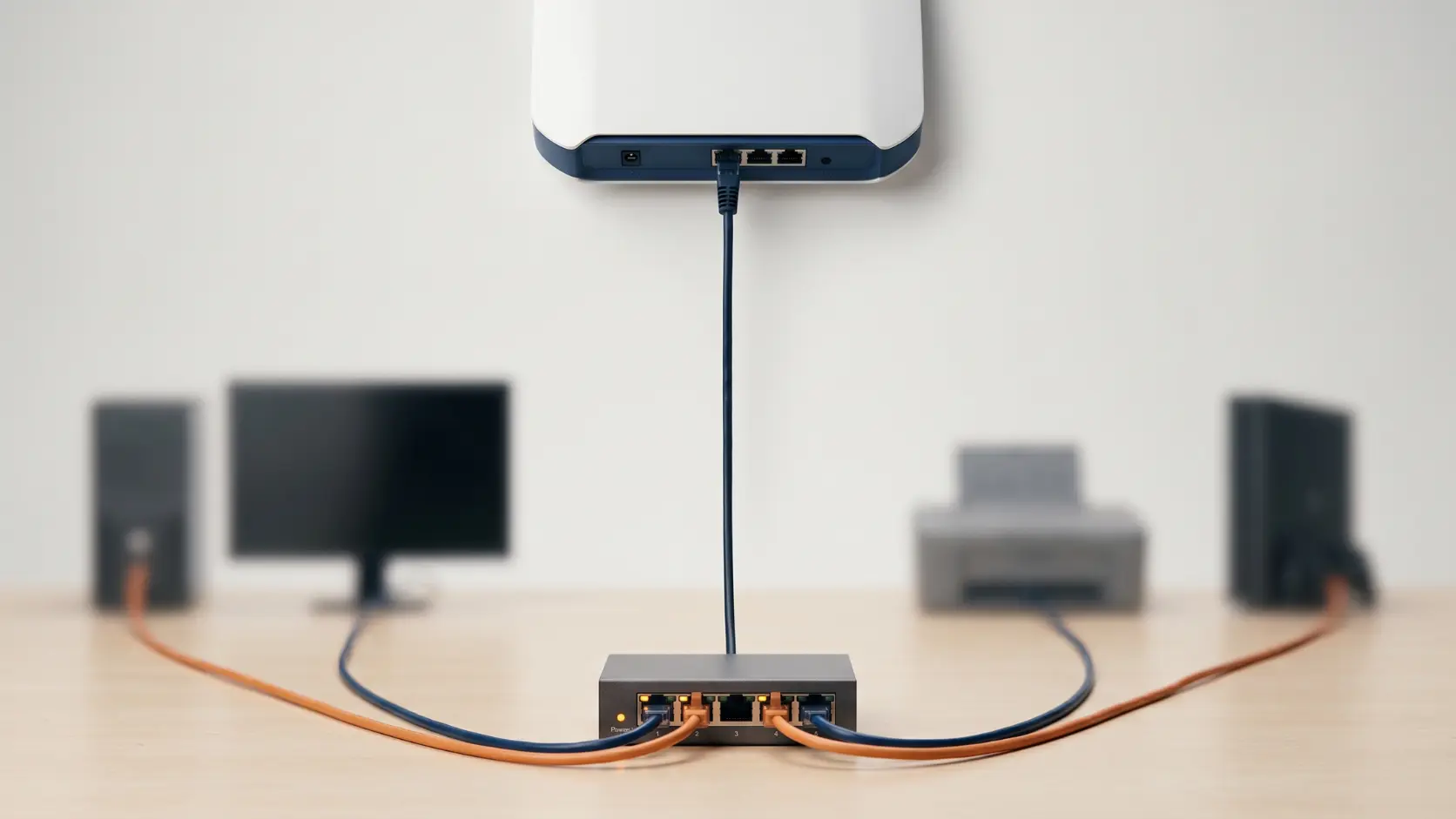
Ran out of Ethernet ports on your router? Here's how to add more with a network switch, in minutes, without replacing your router.
Most home routers ship with 4 wired Ethernet ports, which felt like plenty a decade ago and feels distinctly tight now. A desktop computer, a smart TV, a games console, and a NAS drive already fill every port — and that's before adding a second desk, an extra camera, or a media streaming box. The instinctive reaction is often "I need a new router," but that's almost never the actual fix. What you need is a network switch.
Router vs Switch: A 10-Second Refresher
Your router manages your internet connection and creates your network. A switch simply adds more wired ports to that existing network — it doesn't replace anything, doesn't need reconfiguring your setup, and doesn't touch your WiFi at all. Think of it as an extension cord for Ethernet ports, not a new piece of core infrastructure.
Important: A Switch Is Not the Same as a Splitter
This trips people up more than expected. An Ethernet (or network) splitter is a different, much more limited device that doesn't actually add usable network capacity the way a switch does — it's a passive device with real limitations for anything beyond very specific, low-bandwidth use cases. What you want is a network switch, not a splitter, if your goal is genuinely more usable wired ports for multiple devices.
How to Add More Ports: Step by Step
1. Count your actual device needs. How many additional wired connections do you need right now, and what might you add in the next year or two? This determines what size switch makes sense — see our port count guide if you're unsure between a 5-port and an 8-port model.
2. Choose an unmanaged switch, unless you have a specific reason not to. For simply adding ports, an unmanaged switch requires zero configuration and costs less than a managed equivalent. Tenda's S105/SG105M (5-port) and S108/SG108M (8-port) cover the vast majority of home expansion needs.
3. Match switch speed to your router; don't exceed it unnecessarily. If your router's ports run at Gigabit speed, a Gigabit switch (SG105M, SG108M) makes sense. If your router only has 100 Mbps ports, a Gigabit switch won't give you speed beyond what the router itself can deliver on that connection — you're not gaining anything by buying faster switch hardware than your router can feed.
4. Connect the switch to your router. Plug one end of an Ethernet cable into any free LAN port on your router, and the other end into any port on the switch — modern switches automatically detect this uplink connection, no special port required.
5. Power on the switch, if it needs external power. Some compact switches draw power via USB or a small adapter; check your specific model.
6. Connect your devices to the remaining switch ports. Your desktop, NAS, smart TV, or gaming console should connect and appear on your network within seconds — no further configuration needed on an unmanaged switch.
That's genuinely the whole process — most people complete this in under 10 minutes.
A Practical Note on Shared Bandwidth
All devices connected through your switch share the bandwidth of the single port connecting the switch back to your router. For typical home use — browsing, streaming, general file access — this is rarely a noticeable limitation, since your internet connection itself is usually the bigger bottleneck long before the switch's uplink port becomes one. It's worth being aware of for genuinely heavy simultaneous use cases (several 4K streams plus large file transfers at once), but for the vast majority of home expansions, it's not something to worry about.
Common Scenario: Home Office Needing Multiple Wired Connections
A common real-world case: a home office with a desktop computer, a network printer, a VoIP phone, and a NAS drive for backups — four devices, exactly at a typical router's port limit, with the rest of the house needing its own ports too. Running one Ethernet cable from the router to an 8-port switch (like the Tenda S108 or SG108M) placed in the home office gives that whole room its own expanded set of ports, without touching the router's remaining connections for the rest of the house.
When to Consider a Larger Switch Instead
If you're consistently running out of ports even after adding a small switch, or you're setting up a genuinely device-heavy environment (a home office plus a media centre plus a growing smart-home setup), it may be worth sizing up to a 16-port switch like the TEG1016D from the start, rather than adding a second small switch later. See our full port-count comparison for guidance on choosing the right size the first time.
Frequently Asked Questions
Can I just buy a router with more built-in ports instead?
This is possible, but routers with many built-in Ethernet ports are less common and often significantly more expensive than buying a standard router plus a separate switch. Adding a switch also lets you place extra ports exactly where you need them (like a specific room), rather than being limited to wherever the router sits.
Does adding a switch slow down my internet speed?
No, not meaningfully for typical home use. A switch efficiently directs traffic only to the devices that need it, and doesn't add noticeable overhead for standard browsing, streaming, and file access.
What's the difference between an Ethernet splitter and a switch?
A splitter is a much more limited device that doesn't provide genuine additional network capacity the way a switch does. For adding usable ports for multiple devices, a network switch is the correct tool — always confirm you're buying a switch, not a splitter, when shopping.
Do I need a managed switch just to add more ports at home?
No — an unmanaged switch is the simpler, more cost-effective choice for straightforward port expansion, requiring no configuration at all. Managed switches are for more advanced needs like network segmentation, which most home setups don't require.
Can I connect a switch to another switch if I need even more ports?
Yes, switches can be chained together (a switch connected to another switch's port) to expand capacity further, though for larger ongoing needs, a single bigger switch is often a cleaner, more efficient solution than chaining several small ones.
Will a Gigabit switch make my internet faster if my router only has 100 Mbps ports?
No — the router's port speed is the limiting factor in that scenario, not the switch. A Gigabit switch only delivers Gigabit speeds between devices connected to it directly, not beyond what the router itself can pass through to your internet connection.
Running out of Ethernet ports is one of the simplest networking problems to fix — no new router required. Browse Tenda's network switch range to find the right size for your home or office.